
What are Target Cities?

Target cities are the locations where you want to show customized images.

Selecting Cities

Let AI suggest cities based on your business:
1

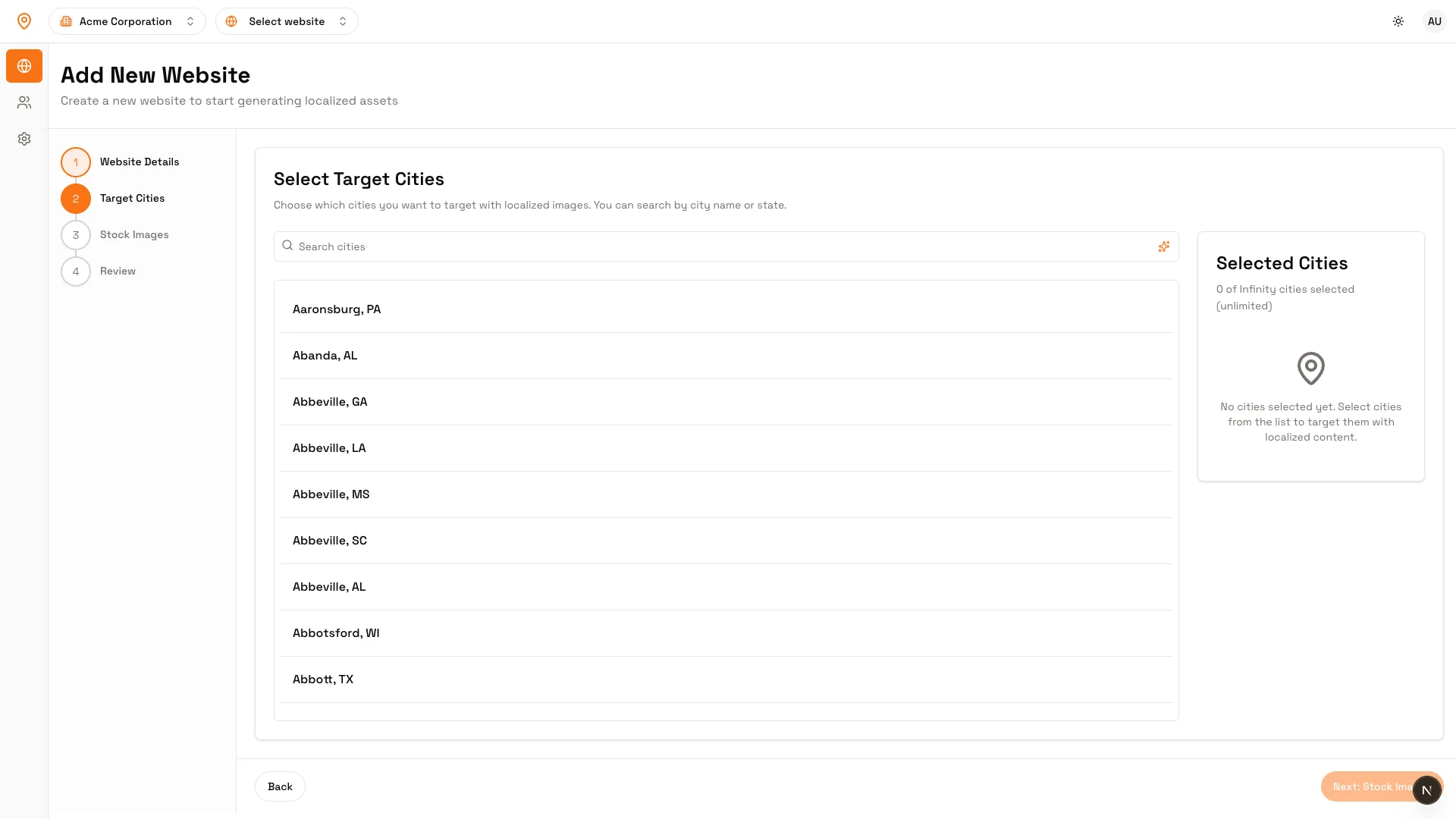
Click the sparkle icon

In the city selector, look for the search input field. On the right side of the search box, click the orange sparkle icon (✨) to open the AI city finder.City selector with sparkle icon
2

Describe your target audience

In the modal that opens, enter a description like:
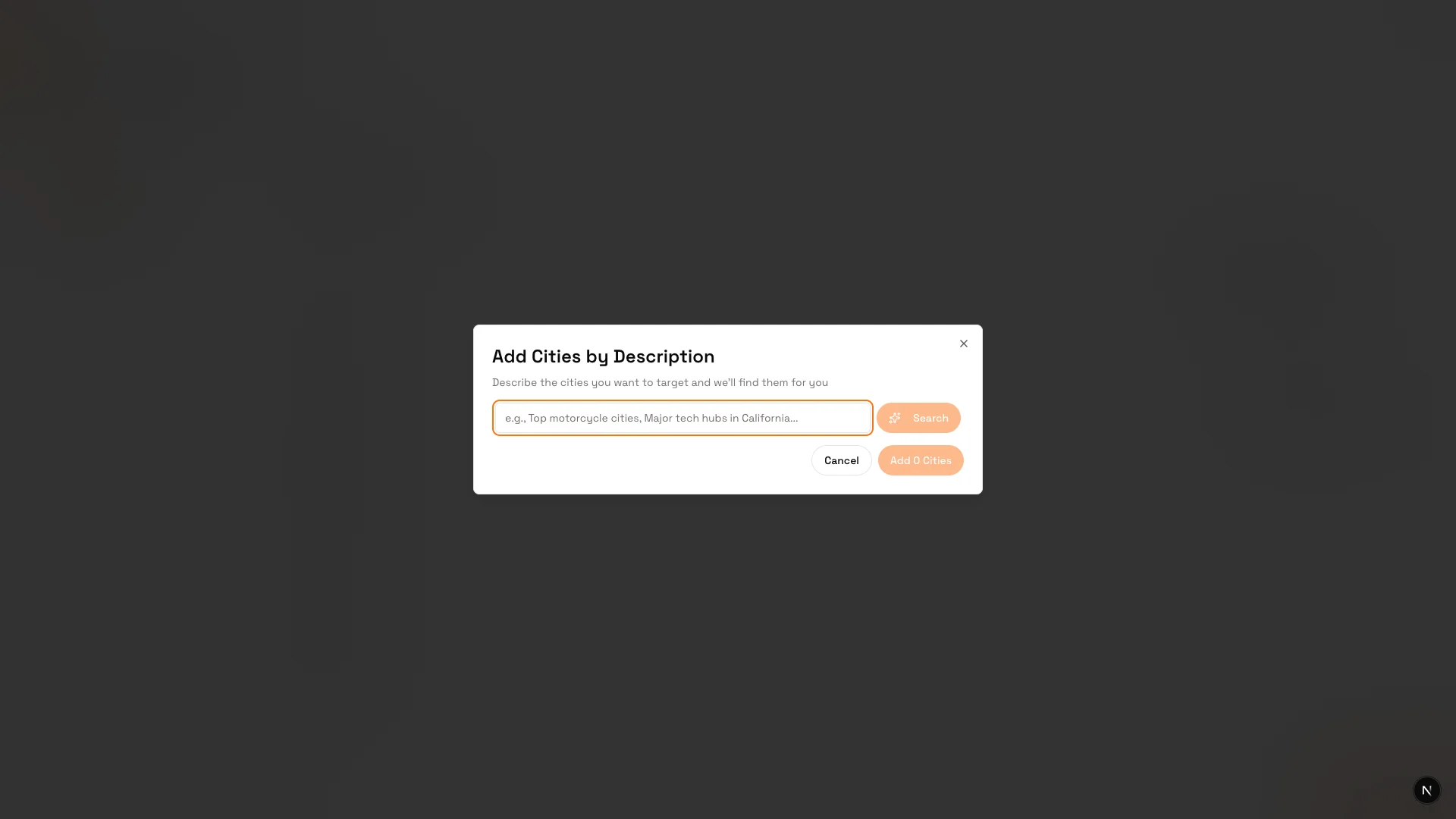
  • “Top motorcycle cities in Texas”
  • “Major tech hubs in California”
  • “College towns in the Midwest”
  • “Cities with over 500,000 population”
AI city selector modal
3

Search for cities

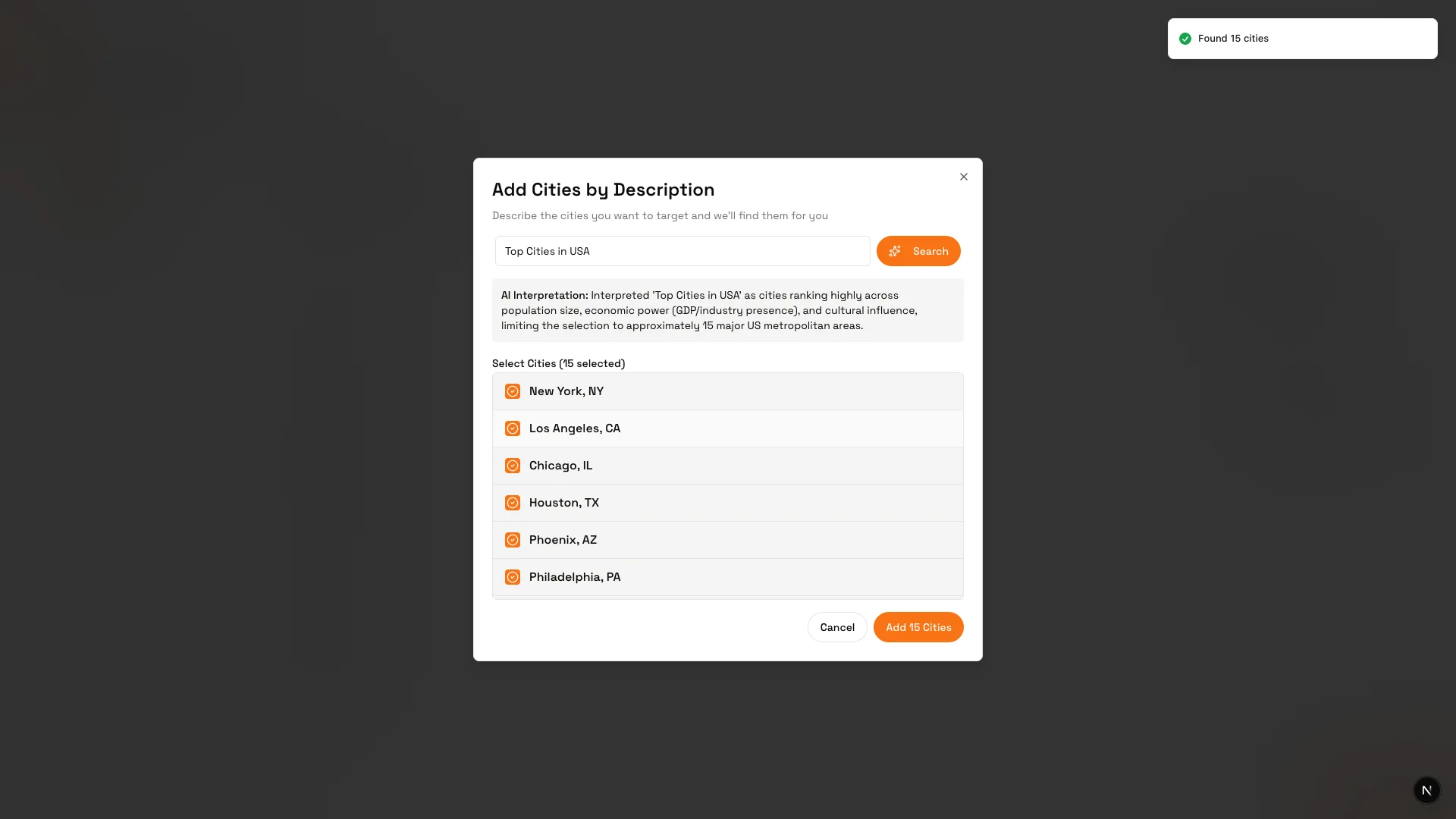
Click the “Search” button (or press Enter) to let AI find matching cities.AI city search results
4

Review and add cities

AI will suggest relevant cities. Review the list - cities are automatically selected. Click “Add Cities” to add them to your target list.

Method 2: Manual Selection

Pick cities from the interactive map:
1

Open city selector

Go to SettingsTarget Cities (or click the map icon)
2

Click cities on the map

Click on any city marker to select/deselect itSelected cities turn orange
3

Or search by name

Use the search box to find specific cities
4

Save your selection

Click “Save Cities”

Managing Your Cities

Adding More Cities

Go to Settings → Target Cities and select additional cities.

Removing Cities

Click on a selected city to deselect it. This won’t delete existing localized images.

Viewing Current Cities

Your target cities are listed in Settings → Target Cities.

Next Steps