

What is Media Library Sync?
Media Library Sync uploads your existing WordPress images to Localizer. These become reference images that you can use to generate localized variants.How to Sync Your Media Library
Review images to sync
The Media Library Sync section shows: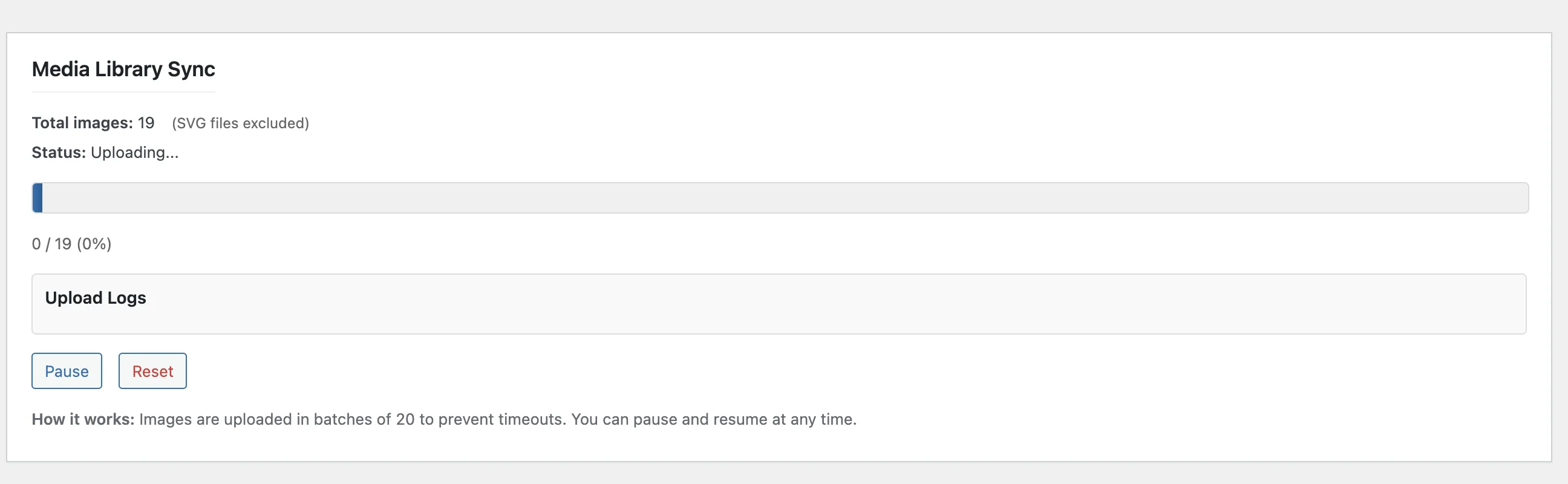
- Total images: Number of images in your library (SVG files excluded)
- Status: Ready, Syncing, or Complete
Click Start Upload
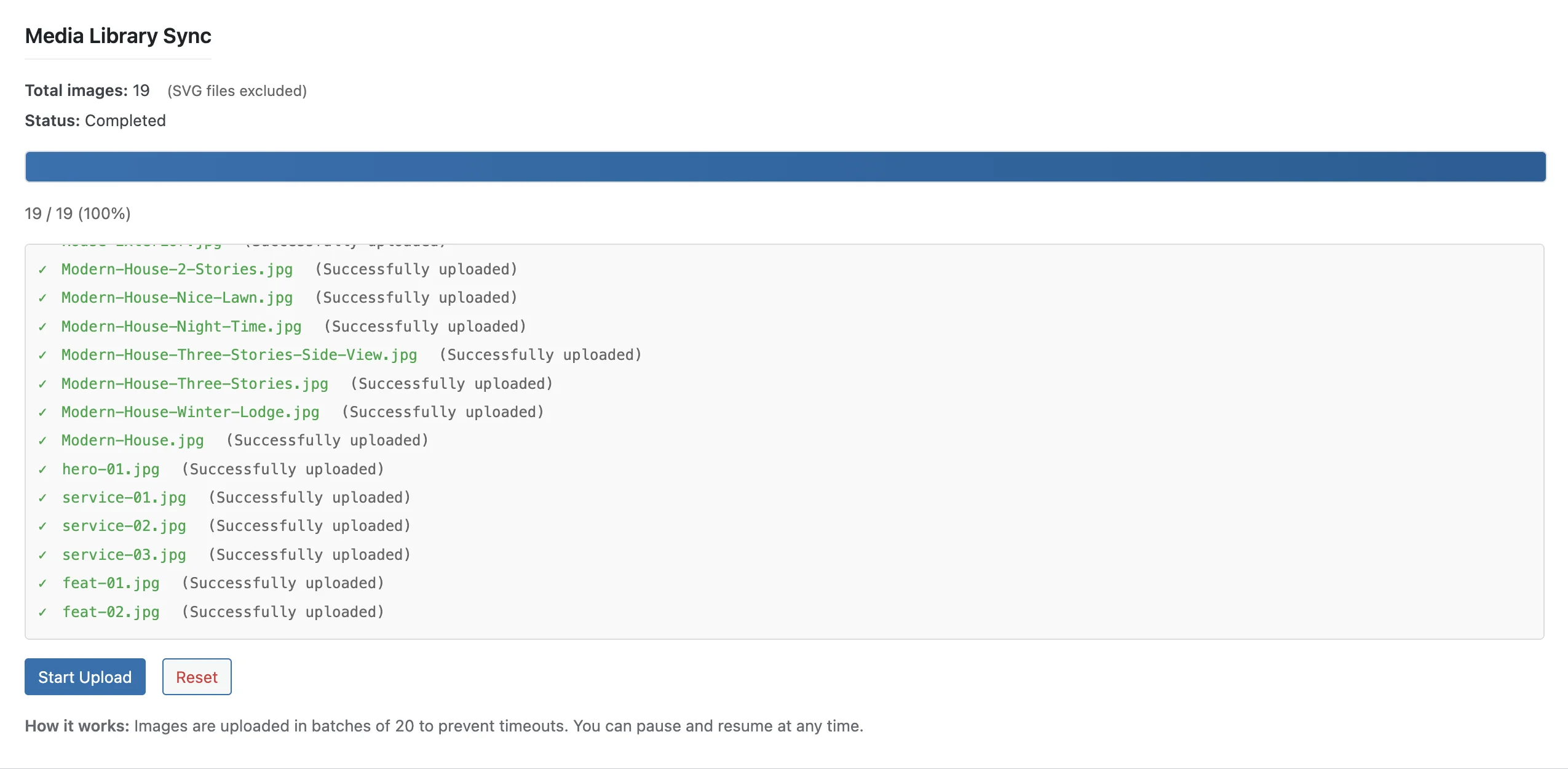
Click the Start Upload button to begin syncing.Images are uploaded in batches of 20 to prevent timeouts and ensure reliability. The progress bar updates after each batch completes.Controls available:
- Pause - Stops after current batch completes (progress is saved)
- Resume - Continues from where you left off
- Reset - Clears progress and starts fresh
The batch system prevents timeouts on large media libraries and allows you to pause/resume as needed.
What Happens to Synced Images
Synced images appear in your Localizer Mood Board as reference images. From there, you can:- Generate localized variants for target cities
- Use them as style references for AI generation
- Organize them into collections
Sync Settings
Rescan Media Library
If you’ve added new images to WordPress:- Use the admin bar: Localizer → Rescan Media Library
- Or click Reset in settings and start a new sync
What Gets Synced
| Included | Excluded |
|---|---|
| JPG, JPEG | SVG files |
| PNG | Very small images (<100px) |
| WebP | Temporary/cache images |
| GIF |
Common Questions
Do I need to sync all images?
Do I need to sync all images?
No! You can generate localized images from scratch without syncing. Syncing is helpful if you want to use existing images as references.
Can I sync specific images only?
Can I sync specific images only?
Currently, sync uploads all eligible images. You can choose which ones to use as references in Localizer’s Mood Board.
Will this affect my WordPress site?
Will this affect my WordPress site?
No. Syncing only copies images to Localizer - it doesn’t modify your WordPress media library.
How long does syncing take?
How long does syncing take?
Images upload in batches of 20 with a small delay between batches. Typically 1-2 seconds per image. A library of 100 images takes about 2-3 minutes. You can pause and resume at any time.
What if some uploads fail?
What if some uploads fail?
Failed uploads are tracked and displayed in the sync panel. You can reset and retry, or continue - failed images won’t block the sync process.
Next Steps
How Image Swapping Works
Understand the base_name matching system
Test Your Setup
Preview localized images before going live
Sync issues? Email support@localizer.nu-dev.co