

Password Recovery
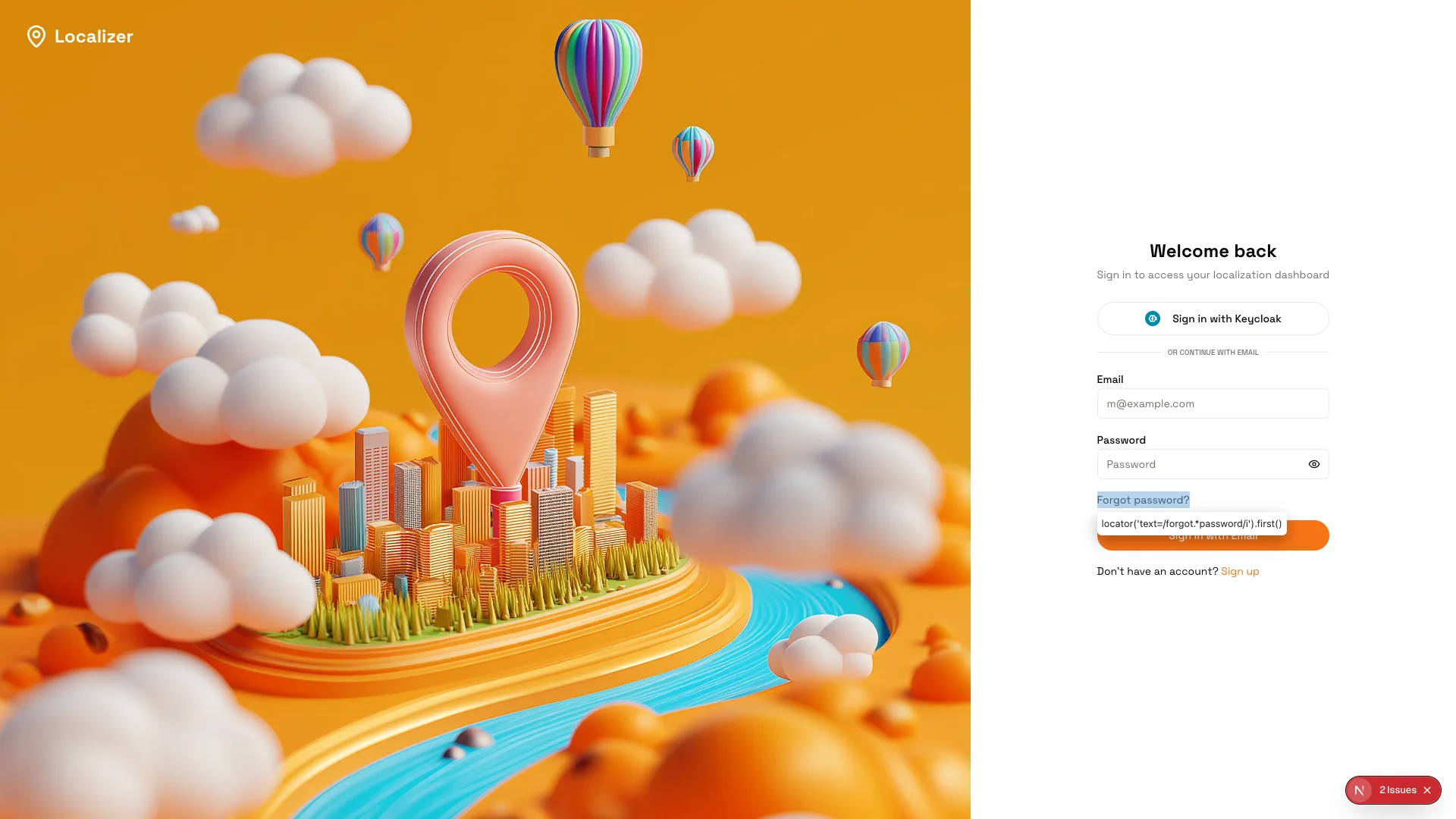
Forgot your password? No problem!Go to login page
Visit Log In
Email Not Arriving
If you don’t receive the verification email:- Check spam folder - Sometimes it lands there
- Wait 5 minutes - Email can be delayed
- Check email spelling - Make sure you typed it correctly
- Request resend - Click “Resend Verification Email”
- Try different email - Use Gmail or another provider
Can’t Log In
If you can’t log in:- Check password - Make sure Caps Lock is off
- Use password reset - Click “Forgot Password” to reset
- Try Keycloak sign-in - If you signed up with Keycloak, use that method
- Clear browser cache - Sometimes helps with login issues
Account Already Exists
If you see “Email already registered”:- You may have signed up before and forgotten
- Try clicking “Forgot Password” to reset your password
- Check if you signed up with Keycloak instead of email
For immediate assistance, please contact support@localizer.nu-dev.co