

The Core Concept
The Localizer WordPress plugin automatically replaces images on your site with localized versions. It does this by matching the base_name of images.What is base_name?
Every image in Localizer has abase_name - a unique identifier used to match images between WordPress and Localizer.
Example base_names:
hero-imagestorefront-photoproduct-banner-1
How Matching Works
When a visitor loads your page, the plugin automatically matches images using base_name: In simple terms:- Plugin scans the page for images
- Extracts filename (without extension) to get base_name
- Looks up matching base_name in Localizer
- If found, checks for city-specific variant
- Falls back to state → sitewide → original if needed
- Displays the appropriate image
Scenario 1: Using Reference Images
When you sync images from WordPress and use them as references:Scenario 2: Creating New Images (No Reference)
When you generate brand new images in Localizer without a reference:Setting base_name Manually
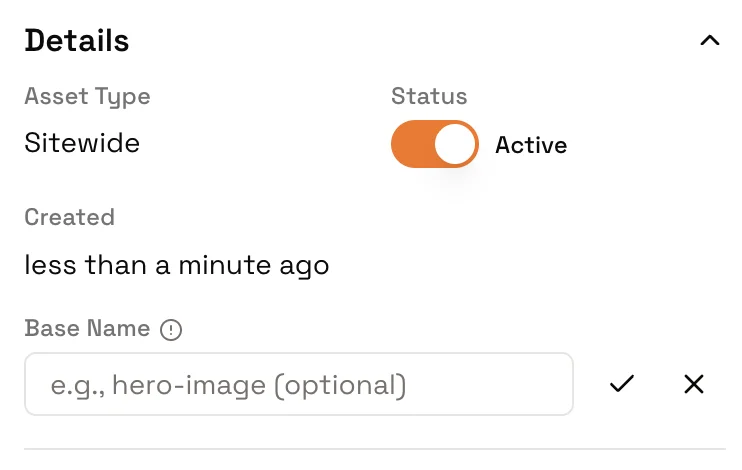
To set or change an image’s base_name:- Open the asset in Localizer
- Go to Asset Details
- Find the Base Name field
- Enter the filename (without extension) of the WordPress image you want to replace
- Save changes
Scenario 3: New WordPress Site (No Existing Images)
If you’re building a new WordPress site: Option A: Create images in Localizer first- Generate localized images in Localizer
- Set meaningful base_names (e.g.,
hero,about-banner) - In WordPress, name your images to match those base_names
- Swapping works automatically
- Upload placeholder images to WordPress with your intended filenames
- Sync to Localizer
- Use as references to generate localized variants
- Swapping works automatically
Quick Reference
| Scenario | base_name Set Automatically? | Action Needed |
|---|---|---|
| Reference image from WP sync | ✅ Yes | None |
| New image with reference | ✅ Yes | None |
| New image without reference | ❌ No | Set manually in Asset Details |
Troubleshooting
Image not swapping on my site
Image not swapping on my site
Check:
- Is the base_name set correctly in Localizer?
- Does it match your WordPress image filename (without extension)?
- Have you generated a localized variant for the visitor’s city?
- Is the plugin connected and working? (Test Connection)
How do I find an image's base_name?
How do I find an image's base_name?
In Localizer, click on the asset and check Asset Details. The base_name field shows the current value.
Can two images have the same base_name?
Can two images have the same base_name?
No - base_names must be unique within a website. If you try to set a duplicate, you’ll get an error.
What characters can base_name contain?
What characters can base_name contain?
Letters, numbers, and hyphens. No spaces or special characters.Good:
hero-image, banner1, about-us
Bad: hero image, banner@home, about_us