

Always test before going live! Make sure images swap correctly for different locations.
Using Test Location
The Test Location feature lets you override real location detection. You can preview what visitors from any city will see.Method 1: Admin Bar (Quick)
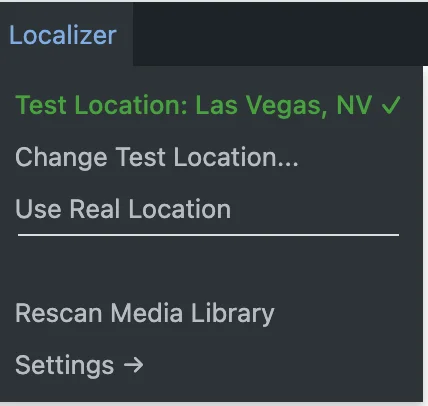
The fastest way to switch test locations:Look for Localizer in admin bar
When logged into WordPress, you’ll see “Localizer” in the top admin bar
Method 2: Settings Page
For more control:Find Test Location section
Enter: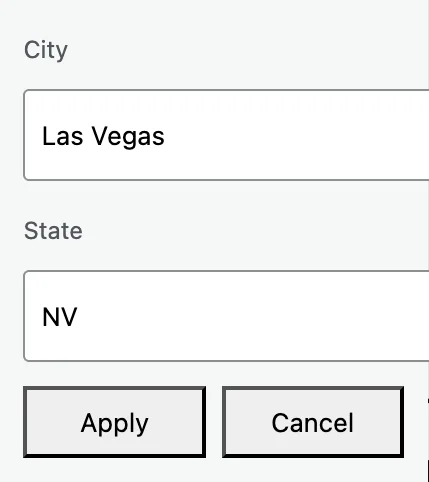
- City: City name (e.g., “Las Vegas”)
- State: 2-letter code (e.g., “NV”)
Testing Checklist
Before going live, test these scenarios:Test a city with localized images
Set test location to a city you’ve generated images for.Verify: Images swap to the localized versions
Test a city without localized images
Set test location to a city you haven’t targeted.Verify: Original images display (fallback works)
Test with real location
Clear test location (use real IP).Verify: Your actual location is detected correctly
Admin Bar Quick Actions
| Action | What it Does |
|---|---|
| Test Location: [City] | Shows current test city (green = active) |
| Change Test Location | Opens prompt to enter new city |
| Use Real Location | Disables test mode, uses real IP |
| Rescan Media Library | Re-syncs WordPress images |
| Settings → | Opens Localizer settings page |
Important Reminders
How to Disable Test Location
Either:- Click Localizer → Use Real Location in admin bar
- Or clear both City and State fields in Settings → Localizer
Verifying Images Are Working
Check the Source
- Right-click on an image on your page
- Click “Inspect” (or “Inspect Element”)
- Look at the
srcattribute
src URL will be different from your original WordPress media URL, and you’ll see a data-localizer-original attribute storing the original URL.
If not working: The src shows your original WordPress media URL and there’s no data-localizer-original attribute.
Check Console for Errors
- Open browser Developer Tools (F12)
- Go to Console tab
- Look for Localizer messages or errors
Common Testing Issues
Test location not working
Test location not working
- Make sure you clicked Save Settings
- Clear your browser cache
- Try a hard refresh (Ctrl+Shift+R)
Images not swapping in test mode
Images not swapping in test mode
- Verify you have localized variants for that city
- Check base_name matches (see image swapping guide)
- Test the connection in Settings → Localizer
Admin bar not showing Localizer
Admin bar not showing Localizer
- Make sure you’re logged into WordPress
- Verify plugin is activated
- Clear any caching plugins